 737d579cad
|
||
|---|---|---|
| .vscode | ||
| example | ||
| gif_examples | ||
| lib | ||
| test | ||
| .gitignore | ||
| .metadata | ||
| CHANGELOG.md | ||
| LICENSE | ||
| Makefile | ||
| README.md | ||
| header.png | ||
| pubspec.lock | ||
| pubspec.yaml | ||
| zoom.code-workspace | ||

README.md
Flutter zoom widget

With this widget you can create a customizable canvas in which you can zoom in flutter.
It is possible to customize virtually all the canvases of the canvas such as color, background color, acitvate and deactivate scrolls, change the color of scrolls, modify the sensitivity of the zoom, the initial zoom enters other aspects found in the construction of the Zoom class.
Installation
Add to pubspec.yaml:
dependencies:
zoom_widget: ^2.0.0
How to use
You only need to create an instance of the Zoom class in the child of your Scaffold or within the widget of your choice, within the child attribute, put the widget that you want to zoom in and the width and height of the canvas where it will be made zoom.
Import
import 'package:zoom_widget/zoom_widget.dart';
Simple examples
Center flutter logo using all space of view port:
 Zoom(
        initTotalZoomOut: true,
        child: Center(
          child: FlutterLogo(
            size: 1000,
          ),
        ),
      );
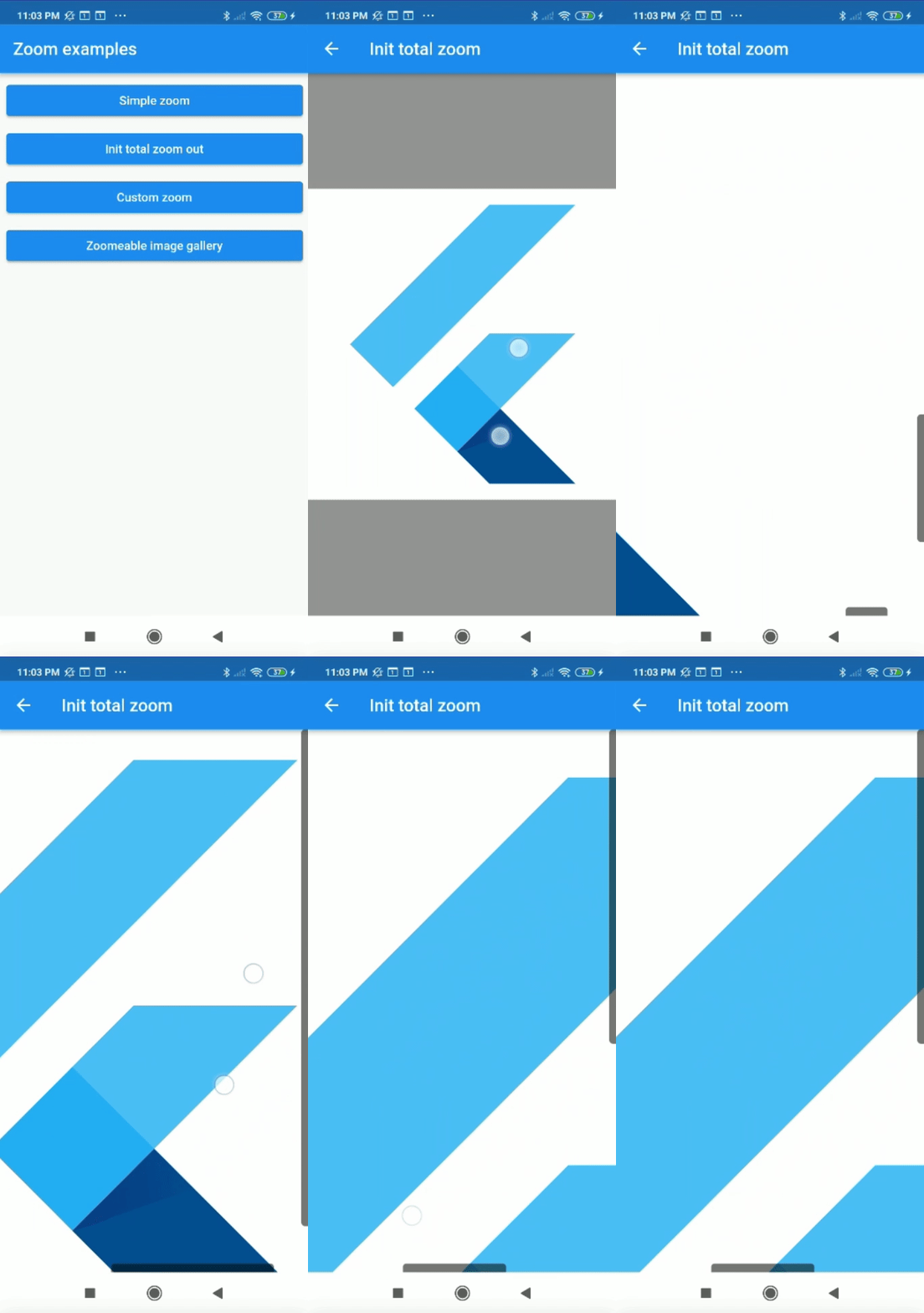
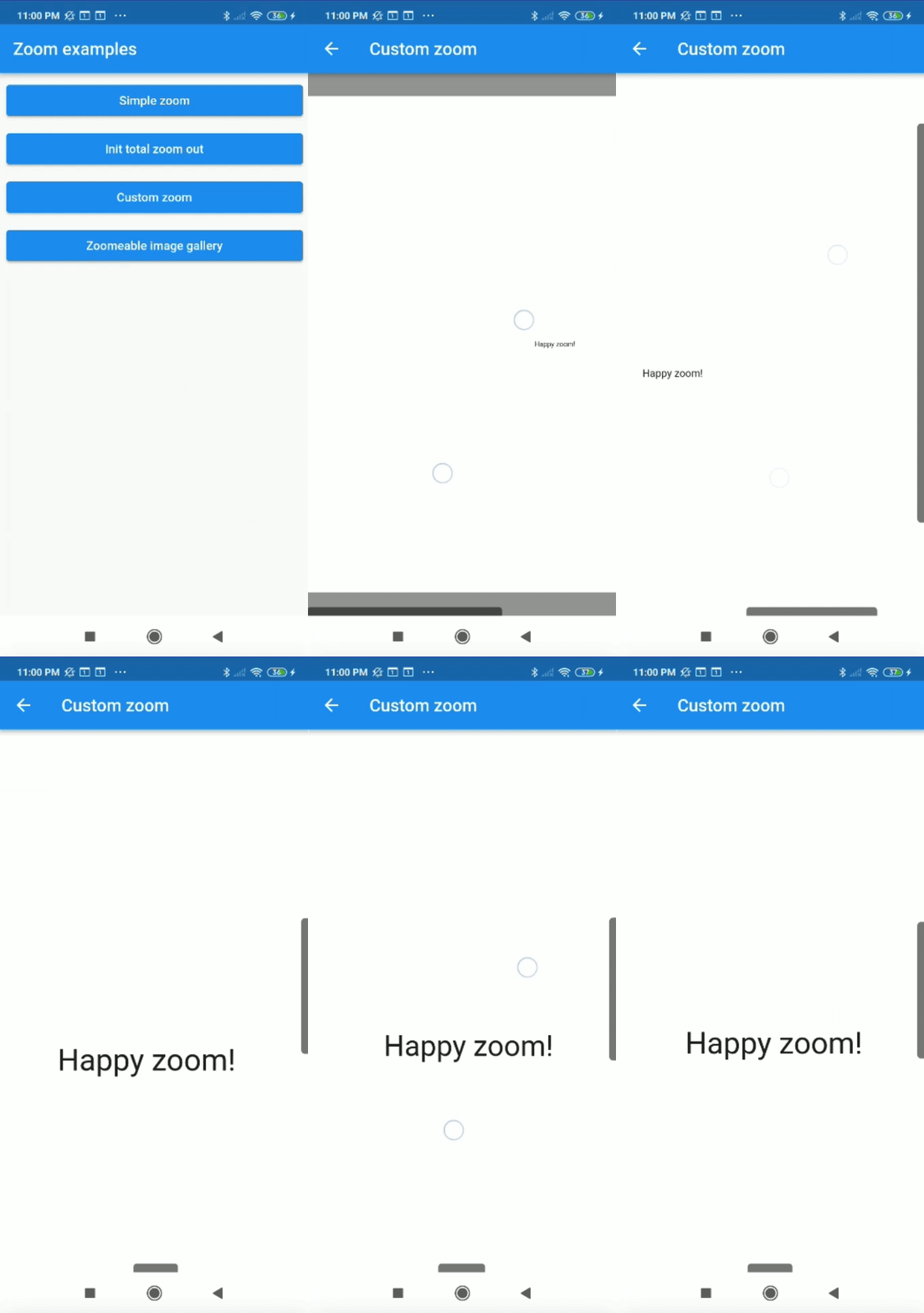
Center text with max width and max height:
Zoom(
    maxZoomWidth: 1800,
    maxZoomHeight: 1800,
    child: Center(
        child: Text("Happy zoom!!"),
    )
);
Callbacks
It is possible to obtain the x and y position of our canvas with respect to the scrolls and and the zoom and scale of our canvas using two simple callbacks in our Zoom instance.
Zoom(
    maxZoomWidth: 1800,
    maxZoomHeight: 1800,
    onTap: (){
        print("Widget clicked");
    },
    onPositionUpdate: (Offset position){
        print(position);
    },
    onScaleUpdate: (double scale,double zoom){
        print("$scale  $zoom");
    },
    child: Center(
        child: Text("Happy zoom!!"),
    )
);
Customize properties
Customizing the properties you can get amazing results.
- width (Depreceted) double.
- height (Depreceted) double.
- maxZoomWidth double.
- maxZoomHeight double.
- backgroundColor Color.
- canvasColor Color.
- onPositionUpdate() Callaback.
- onScaleUpdate() Callaback.
- onTap() Callaback.
- scrollWeight double.
- opacityScrollBars double 0.0-1.0.
- colorScrollBars Color.
- centerOnScale bool.
- initZoom (Depreceted) double.
- initPosition Offset.
- initScale double
- enableScroll bool.
- zoomSensibility double.
- doubleTapZoom bool.
- transformationController TransformationController.
- radiusScrollBars double.
- doubleTapScaleChange double.
- doubleTapAnimDuration Duration.
- initTotalZoomOut bool.
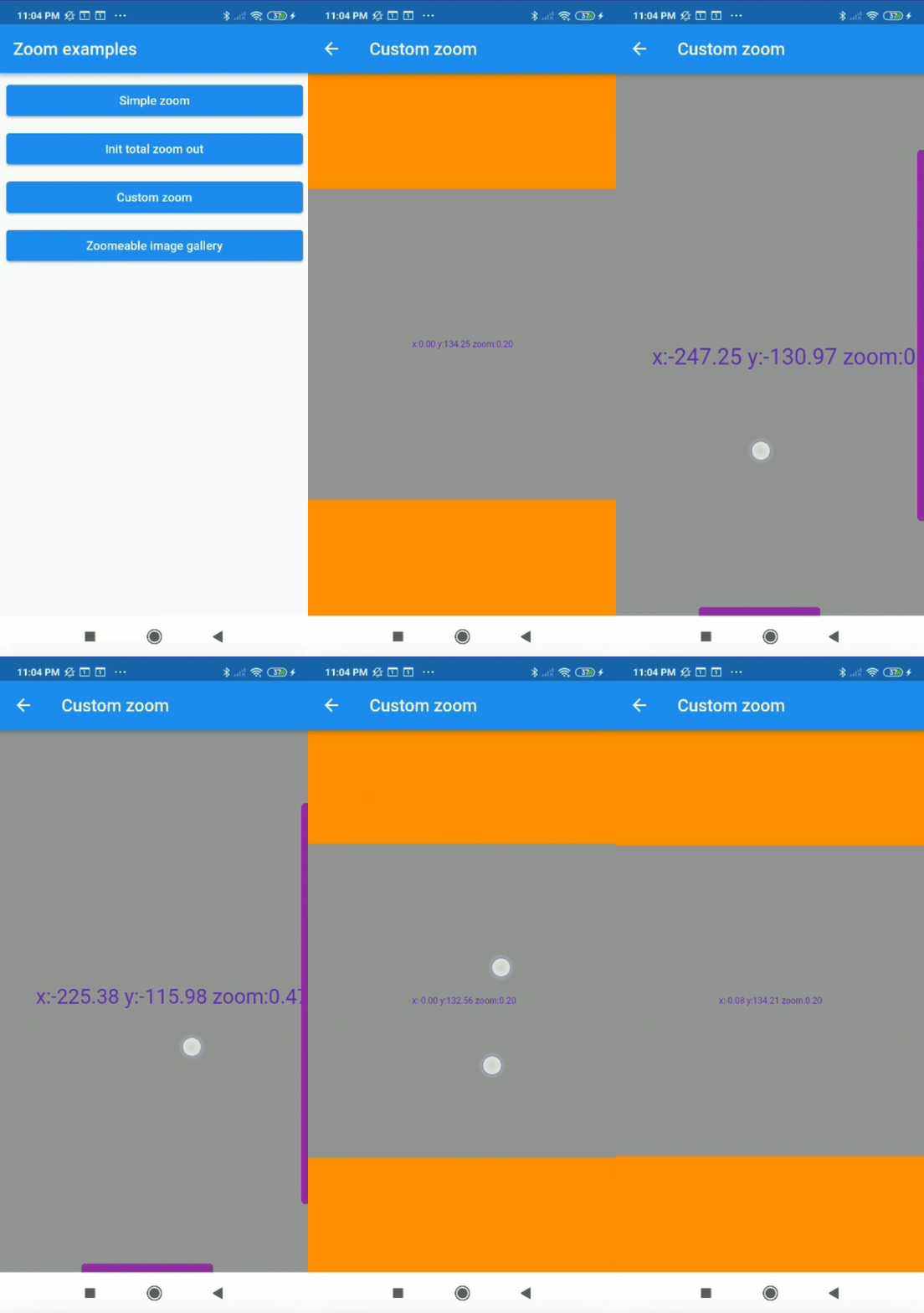
Customized properties example
Zoom(
    maxZoomWidth: 1800,
    maxZoomHeight: 1800,
    canvasColor: Colors.grey,
    backgroundColor: Colors.orange,
    colorScrollBars: Colors.purple,
    opacityScrollBars: 0.9,
    scrollWeight: 10.0,
    centerOnScale: true,
    enableScroll: true,
    doubleTapZoom: true,
    zoomSensibility: 0.05,
    onTap: (){
        print("Widget clicked");
    }
    onPositionUpdate: (position){
        setState(() {
            x=position.dx;
            y=position.dy;
        });
    },
    onScaleUpdate: (scale,zoom){
        setState(() {
            _zoom=zoom;
        });
    },
    child: Center(
        child: Text("x:${x.toStringAsFixed(2)} y:${y.toStringAsFixed(2)} zoom:${_zoom.toStringAsFixed(2)}",style: TextStyle(color: Colors.deepPurple,fontSize: 50),),
    ),
);
Complex example
It can be used for more complex things like an image gallery.
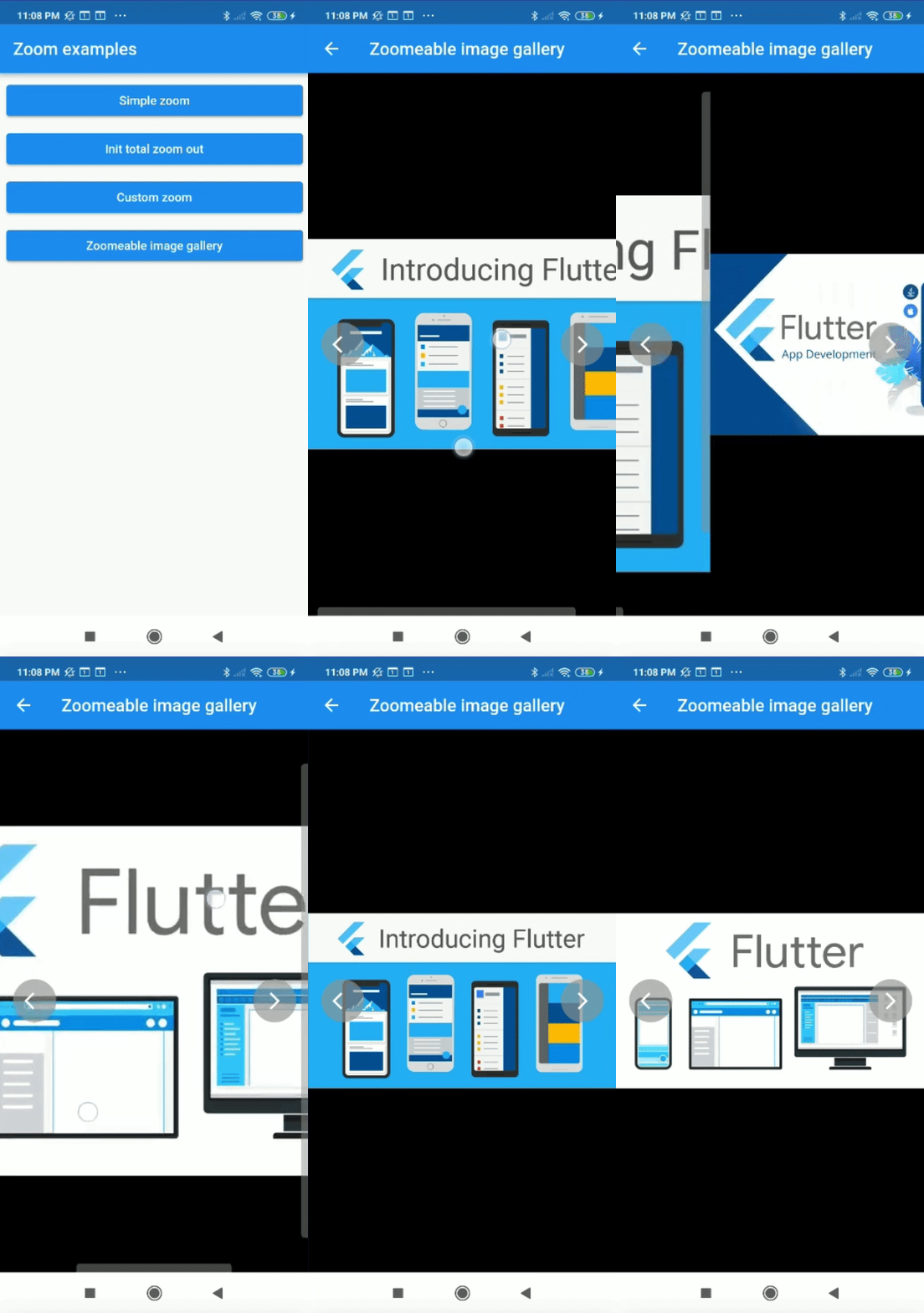
All examples of gifs are inside the example